How to create collections
A helpful aid for day-to-day work: collections
Assets that share a common theme or are otherwise linked can be collected together in a collection. This function is similar to a favorites list – so you always have the most important assets right at your fingertips.
Here is how to create a collection:
- In the general file overview, select the assets that you wish to group together
- In the menu bar, click on the "Add to collection" plus sign
- Now you can either add the files to an existing collection, or create a new collection
- Clicking on "Or create new collection" opens a new window. Enter the name for the collection as well as a short description in the respective input fields
- Your new collection will be created
An overview of the collections you have created can be accessed from the overview bar at the very top.
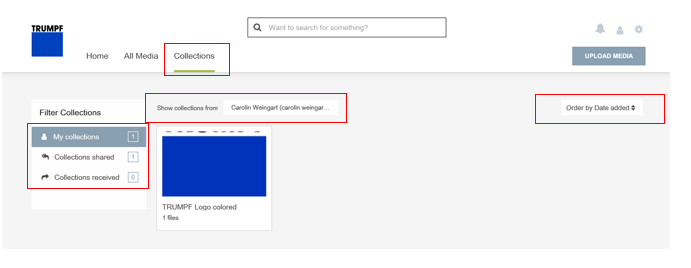
You can arrange the contents of your collection by file name and date added. Additionally you can see to the left an overview of your collections.
Professional tip: copying collections
- Open the collection that you wish to copy
- Highlight all the files in the collection
- Click on the "Add to collection" plus sign in the menu bar at the top right
- Create a new collection
- Now you can add additional assets to the new collection
Additional information about collections can be found here.
Praktisch für den Alltag: Kollektionen
Wenn Sie Medien vor sich haben, die thematisch zusammengehören oder anderweitig in Verbindung stehen, können Sie diese Medien in einer Kollektion zusammenfassen. Diese Funktion ähnelt einer Favoritenliste – so haben Sie die für Sie wichtigsten Medien immer schnell zur Hand.
So erstellen Sie eine Kollektion:
- Wählen Sie in der allgemeinen Dateiübersicht die gewünschten Medien aus, die Sie gruppieren möchten
- Klicken Sie auf das Pluszeichen „zu Kollektion hinzufügen“ in der Menüleiste
- Nun können Sie auswählen, ob Sie die Dateien in eine bereits bestehende Kollektion hinzufügen oder eine neue Kollektion erstellen möchten
- Klicken Sie auf eine „neue Kollektion erstellen“, öffnet sich ein neues Fenster. Geben Sie nun den Namen und eine kurze Beschreibung der Kollektion in die dafür vorgesehenen Eingabefelder ein
- Ihre neue Kollektion wird erstellt
Eine Übersicht über Ihre erstellten Kollektionen können Sie ganz oben in der Übersichtsleiste aufrufen. Sie können die Inhalte Ihrer Kollektion nach Hinzufügungsdatum und Name der Dateien sortieren. Zudem erhalten Sie links, einen Überblick über Ihre Kollektionen.
Profi-Tipp: Kollektionen kopieren
- Öffnen Sie die gewünschte Kollektion, die Sie kopieren möchten
- Markieren Sie alle Dateien dieser Kollektion
- Klicken Sie auf das Pluszeichen „zu Kollektion hinzufügen“ oben rechts in der Menüleiste
- Erstellen Sie eine neue Kollektion
- Nun können Sie noch weitere Medien in die neue Kollektion hinzufügen
Weitere Informationen zu Kollektionen erhalten Sie hier.